
Affiliate Disclosure
Some links on this page are affiliate links. As an Amazon Associate, we earn from qualifying purchases — at no extra cost to you. We do not buy, test, or physically handle the products we cover; our rankings come from aggregated owner reviews, ratings and expert consensus. Commissions never change our verdicts. How we rank & full disclosure.
Short version: getting footage off a dash cam is simple once you know the routine — connect over the camera's Wi-Fi app or pull the microSD card, find the clip by its timestamp, protect it so loop recording cannot overwrite it, then copy it somewhere safe and share a full-quality file (never a screen recording) with insurance or police. The one thing that trips people up is time: dash cams overwrite old footage constantly, so a clip you care about has to be saved promptly. Here is the whole process, start to finish.
A dash cam is only as useful as your ability to get the clip out of it when it counts. The camera did its job on the pass; now you need to pull the recording cleanly and keep it safe. It is easier than most owners expect, and worth practicing once before you ever need it for real.
First, understand loop recording
Every dash cam records in a continuous loop: it fills the memory card with short clips, then writes over the oldest ones to keep recording forever. That is exactly what you want day to day, but it means an important clip is on a countdown — leave it and it will eventually be erased. Everything below is about grabbing the clip you care about before the loop reaches it. This is also why card capacity matters; see the resolution and features guide for how resolution and card size trade off against recording time.
Method 1: The phone app over Wi-Fi
On most cameras from the last several years, this is the fastest route. The dash cam broadcasts its own short-range Wi-Fi hotspot; you join it from your phone, open the manufacturer's app, and browse the recorded clips right there. Watch to confirm you have the right moment, then download the clip to your phone's storage. From the phone it is one tap to back it up or share it. The app is ideal for grabbing a single incident clip at the roadside — just remember the camera's Wi-Fi is local, so you do this at the car, not from home.
Method 2: The memory card in a computer
For bulk transfer, or for a critical file you absolutely cannot lose, pull the microSD card and read it in a computer with a card reader. Power the camera off first, remove the card, and open it on the computer — clips are stored as ordinary video files (usually named by date and time) in folders, often with protected/locked clips kept separate from the normal loop files. Copy what you need onto the computer, then safely eject and return the card. This method gives you the original, full-quality file and is the most reliable for anything headed to an insurer or the police.
Step: Find the clip by timestamp
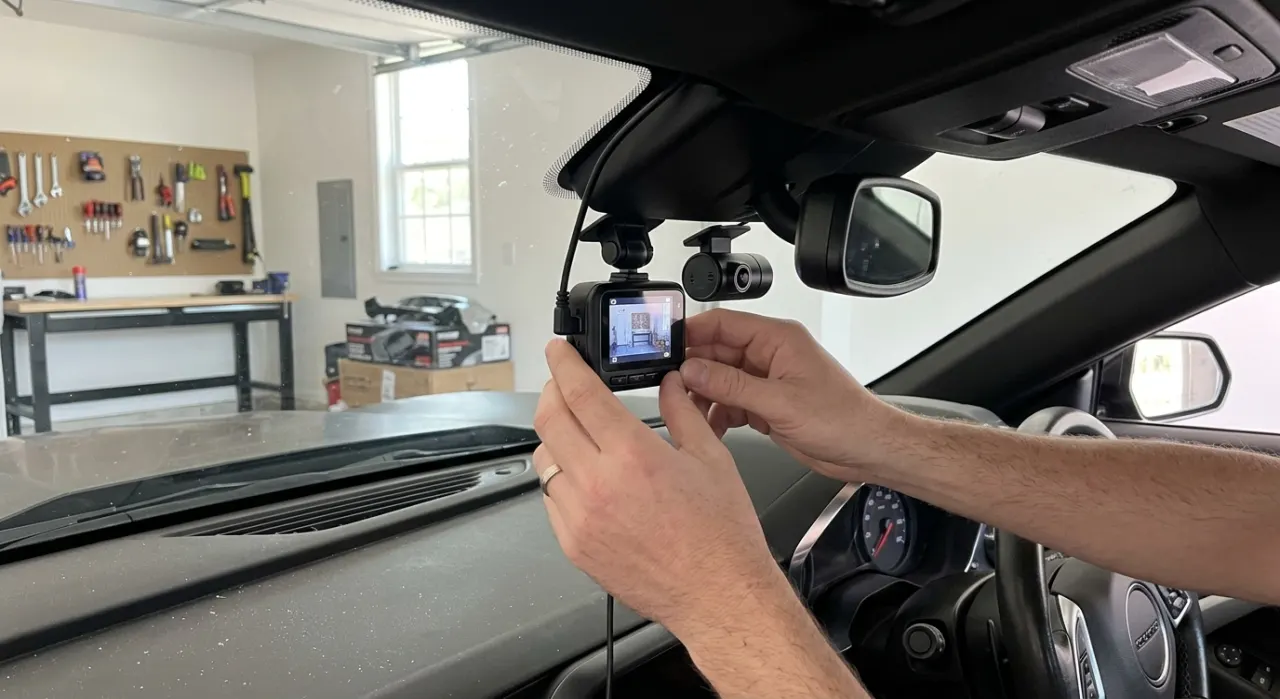
Whichever method you use, locate the clip by its date and time — dash cam files are named and sorted by timestamp, which is why keeping the camera's clock set correctly matters. If your camera records a GPS overlay, the clip will also carry speed and location data, which makes it far stronger evidence. Scrub to confirm you have captured the whole incident, including the moments just before and after, not only the impact itself.
Step: Protect it so it is not overwritten
The moment something happens, protect the file. Most cameras do this two ways: automatically, when the G-sensor feels an impact and locks that clip, and manually, with an emergency/lock button you press while driving. A protected clip is moved to an area the loop will not erase. If you felt a hit but the auto-lock did not trigger, press the manual button. Locking is your first line of defense — but it is not the last, because a card can still fail or be lost.
Step: Back it up and share it correctly
As soon as you can, copy the protected clip off the card onto your phone and ideally a second place — a computer or cloud drive. That way even a corrupted card cannot cost you the evidence. When you hand footage to insurance or police, send the original full-quality video file, not a screen recording or a clip filmed off another screen — the original preserves the resolution, timestamp and GPS data that make it credible. Keep your own backup copy too, and note the incident details while they are fresh.
Good habits that make this painless
A few routines keep the whole process smooth. Use a quality high-endurance microSD card rated for dash cam use, and reformat it in the camera every so often to prevent corruption. Keep the clock and time zone set so timestamps are accurate. And if parking incidents are a concern, run parking mode so the camera captures hit-and-runs while you are away — then use exactly these steps to save the clip. Practice pulling one clip today so the process is familiar before a stressful day forces you to learn it.
Where to go next
Knowing how to pull and protect a clip is what turns a dash cam from a gadget into real protection. If you are still choosing a camera, start with the best dash cam roundup, learn the setup in how to install a dash cam, and head back to the dash cams hub for the full picture.
Recommended Products

Best for the best all-round image quality and reliability
- True 4K front via Sony STARVIS 2 IMX678 sensor
- Standout HDR night vision
- 5GHz Wi-Fi + GPS built in
- Supercapacitor survives cabin heat
Why buy it: the camera owners rate highest for sharp daytime plates and genuinely usable night footage — the all-rounder the enthusiast crowd keeps recommending.

Best for flagship features at a mid-range price
- 3K front + 1080p rear, STARVIS 2 sensor
- Built-in GPS and Wi-Fi
- Polished, easy-to-use app
- ADAS driver alerts
Why buy it: a hugely popular two-channel kit that delivers most of the flagship experience for roughly half the money.

Best for rideshare drivers who need the cabin covered
- 4K front + 1080p interior + 1080p rear
- Infrared cabin night vision
- Voice control, Wi-Fi + GPS
- 24-hour parking mode support
Why buy it: the go-to for Uber, Lyft and taxi drivers — three angles at once with an IR cabin cam that sees in the dark.
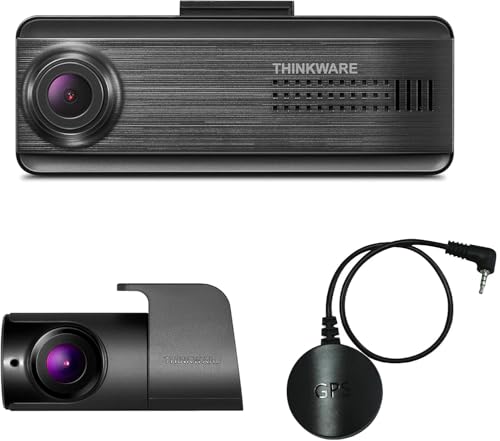
Best for a discreet install that hides behind the mirror
- Compact, low-profile body
- Strong super night vision
- Built-in Wi-Fi + energy-saving parking mode
- Reliable Korean-brand pedigree
Why buy it: the pick for owners who want the camera invisible from outside the car while still recording front and rear.
Best for the smallest, simplest set-and-forget camera
- Tiny, key-fob-sized body
- 1080p with a 140° field of view
- Voice control, no screen to fuss with
- Rock-solid Garmin app + cloud
Why buy it: the highest-reviewed name-brand camera here — owners love how it disappears behind the mirror and just works.

Best for the most 4K dual-channel camera for the money
- 4K front + 1080p rear
- Bright 3.18" screen, Wi-Fi + GPS
- Free memory card in the box
- One of the most-reviewed cams online
Why buy it: a phenomenally reviewed 4K front-and-rear kit that undercuts the premium brands while owners keep rating it highly.
Prices are pulled from Amazon and were accurate as of Aug 22, 2026, 7:14 PM EDT. Product prices and availability are subject to change — the live price is shown on Amazon.